App Crashes When Saving Data Feed in Feed Settings
App Crashes When Saving Data Feed in Feed Settings
Overview
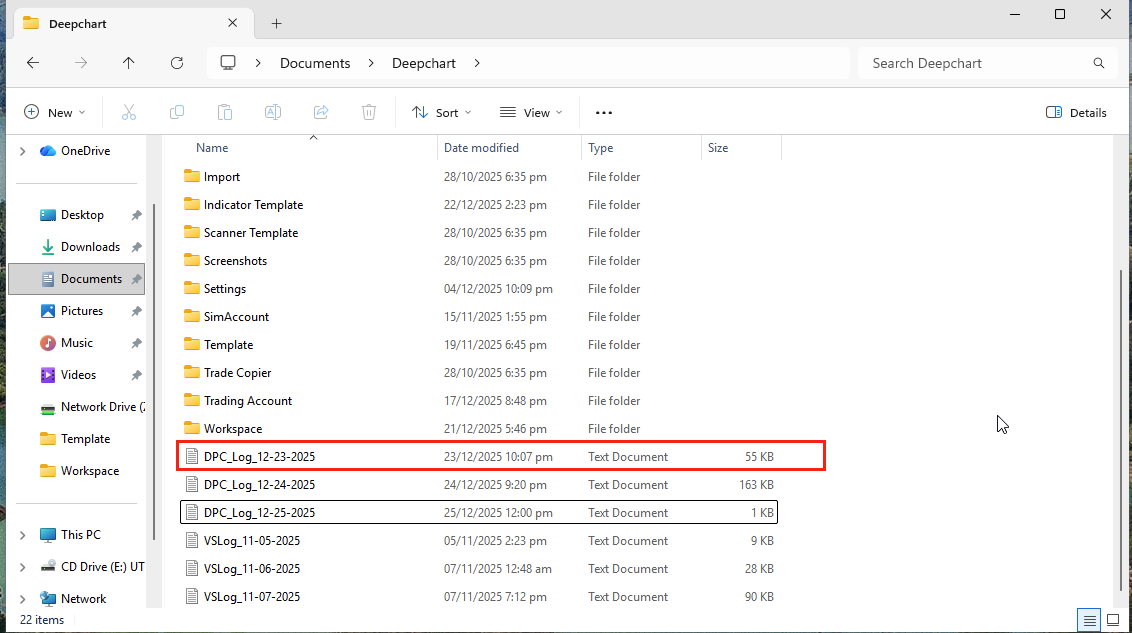
If DeepChart crashes when you click “Save” in Feed Settings, the cause can usually be identified by checking the latest log file generated by the application.
Crash logs are stored at:
C:\Users\YOUR_USERNAME\Documents\Deepchart
Look for the most recently created file named:
DPC_Log_Date.txt
Common Causes
There can be multiple reasons for this crash. The three most common causes are listed below, along with their solutions.
Cause 1: System Language Is Not English
Description
If your Windows system language is set to a language other than English, DeepChart may fail to correctly read or write configuration values when saving feed settings.
Solution
Change your Windows display and system language to English
Restart your PC
Open DeepChart and try saving the feed settings again
If the issue persists, proceed to the next solution.
Cause 2: DeepChart Is Not Running With Administrator Permissions
Description
DeepChart requires permission to read and write configuration files (such as config.settings). Without administrator privileges, the application may crash when attempting to save feed settings.
Solution
Close DeepChart
Navigate to:
C:\Program Files\Volumetrica Trading\DeepchartRight-click DeepChart.exe
Select Run as administrator
Reopen Feed Settings and click Save
If the application still crashes, continue to the next solution.
Cause 3: Corrupted Configuration Files (config.settings or connProp.settings)
Description
If the configuration files are corrupted, DeepChart may crash whenever it tries to save or update feed settings.
Solution: Delete the DeepChart AppData Folder
⚠️ This will reset local settings. You may need to re-configure your data feed afterward.
Step 1: Open Your User Folder
Open Local Disk (C:)
Open Users
Open the folder of the Windows user you are currently logged in as
(You can confirm your username from the Windows Start menu.)
Step 2: Show Hidden Folders
In File Explorer, click View
Select Show
Enable Hidden items
Step 3: Delete DeepChart AppData Folder
Open:
AppData → RoamingLocate the Deepchart folder
Delete the Deepchart folder
Step 4: Restart DeepChart
Launch DeepChart again (preferably Run as administrator)
Re-enter your feed settings
Click Save
✅ The crash should now be resolved.
Additional Notes
Always review the latest
DPC_Log_Date.txtfile for detailed crash information. If you are unable to read the Logs contact the support line of Deepcharts and submit the logs to a support agent.Running DeepChart as administrator is recommended, especially on first setup
Avoid force-closing the app while saving settings
Related Articles
Connect to Data Feed
Here is how you can connect to Data Feed from the start: Buying Data Feed / Getting Credential Go to my.deepcharts.com Go to Data Feed on the left. Click on Add data feed subscription Click on desired Data Feed and Proceed with the order Then enter ...Replay Data
This is how you can replay the market data. Open Deepchart software Make sure you are not connected to any Data Feed. And close any price chart. Go to Options > Replay Tick Data Replay Manage Settings Press Select Symbols to select your preferred ...Data Feed Subscription Shows “Pending Cancel” Status
Data Feed Subscription Shows “Pending Cancel” Status Overview If you have canceled your Data Feed subscription but the status still shows “Pending Cancel”, this is expected behavior and does not indicate an issue with your account. Why Does It Show ...Live Feed Connected but Price Chart Is Not Moving
Live Feed Connected but Price Chart Is Not Moving Overview If your data feed is connected but the price chart is not updating, this usually happens due to market conditions, incorrect settings, or corrupted local data. Follow the steps below to ...Different Types of Input Data for Indicators
Types of Input Data for Indicators When you open any indicator's settings and go to Data Settings, you'll see a field called Input Data. This controls where the indicator gets its information from. Choosing the right type can make a big difference in ...