Gaps in Price on Charts
Gaps in Price on Charts
Overview
If you notice gaps in price on your charts, this can be caused by either corrupted local data or valid market-related reasons. This article explains the most common causes and how to resolve them.
Possible Causes
The most common reasons for price gaps are:
-
Corrupted data in the local database
-
Actual price gaps in the market
-
Invalid or incorrect contract expiry selected
Each cause and its solution is explained below.
Cause 1: Corrupted Local Data
Description
Sometimes the historical data stored in DeepChart’s local database becomes corrupted, which can result in visible gaps on the chart.
Solution: Delete and Reload Symbol Data
Step 1: Open Database Settings
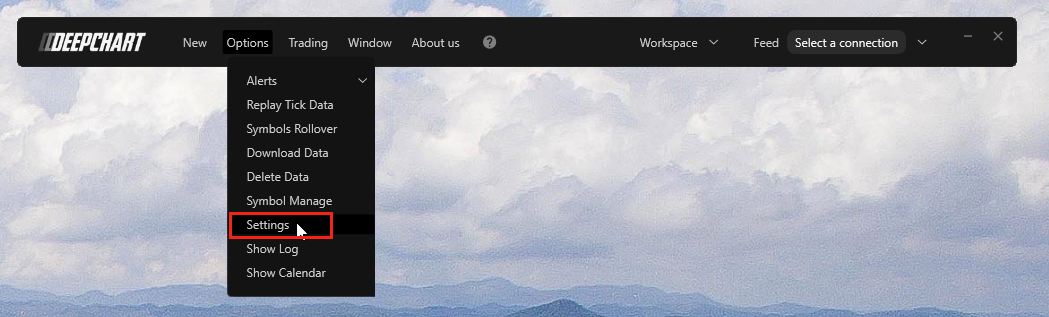
In DeepChart, go to:
Options → Settings
Step 2: Locate Database Folder Path
-
Open General Settings
-
Under the Various section, copy the Database Folder Path
Step 3: Open Database Folder
-
Paste the copied path into File Explorer
-
Press Enter
Step 4: Delete Corrupted Symbol Data
-
Inside the database folder, you will see folders for each symbol
-
Delete only the folder of the symbol whose chart shows gaps or corrupted prices
(Do not delete the entire database unless necessary)
Step 5: Reload Chart
-
Restart DeepChart
-
Open the affected chart again
DeepChart will automatically download fresh data for that symbol.
✅ In most cases, this resolves the issue.
Cause 2: Actual Market Price Gaps
Description
If the issue persists after reloading the data, the gaps may represent real price gaps from the market, such as:
-
Session breaks
-
Weekend gaps
-
Low-liquidity periods
These gaps are normal market behavior and not a data error.
Cause 3: Invalid Contract Expiry
Description
If you are trading futures, an incorrect or expired contract month can cause missing or inconsistent data on the chart.
Solution
-
Verify that the correct and active contract expiry month is selected
-
Switch to the current front-month contract if needed
-
Reload the chart after correcting the expiry
Final Notes
-
Always delete only the affected symbol’s folder, not the entire database
-
Real market gaps cannot be “fixed” because they reflect actual trading activity
-
Ensure your contract expiry is valid before assuming data corruption
Related Articles
Price Chart Settings
1.Price Chart Settings The Price Chart in DeepCharts — whether shown as a candlestick or a line chart — is an indicator that helps you visualize the historical transactions of buyers and sellers based on the order book. You can fully customize how ...Price Chart – DeepCharts
A Price Chart is the main chart window in DeepCharts where you can view market data, apply indicators, and trade directly from the chart. This guide covers everything you need to know to get started and make the most of your chart setup. Open a New ...Live Feed Connected but Price Chart Is Not Moving
Live Feed Connected but Price Chart Is Not Moving Overview If your data feed is connected but the price chart is not updating, this usually happens due to market conditions, incorrect settings, or corrupted local data. Follow the steps below to ...How to Delete Market Data from DeepCharts (Software Method)
How to Delete Market Data from DeepCharts (Software Method) Overview If your charts show incorrect prices, gaps, or stop updating, deleting market data from inside the DeepCharts application allows the platform to re-download fresh data ...Price Movement Levels
Price Movement Levels Price Movement Levels plots structured percentage or step-based levels above and below a reference price. It helps traders: Identify intraday expansion levels Visualize support and resistance zones Track percentage-based price ...