Rectangle Drawing Tool Not Working
Rectangle Drawing Tool Not Working
Overview
If the Rectangle drawing tool is not working in DeepCharts, this issue is usually caused by a corrupted configuration file related to drawing tools. Removing this file allows DeepCharts to regenerate it automatically.
Solution: Reset the Drawing Tool Configuration
Step 1: Close DeepCharts
Fully close the DeepCharts application before proceeding.
Step 2: Open the Documents Folder
Open File Explorer
Go to your Documents folder
Step 3: Navigate to the DeepCharts Settings Folder
Follow this path:
Documents → DeepChart → Settings
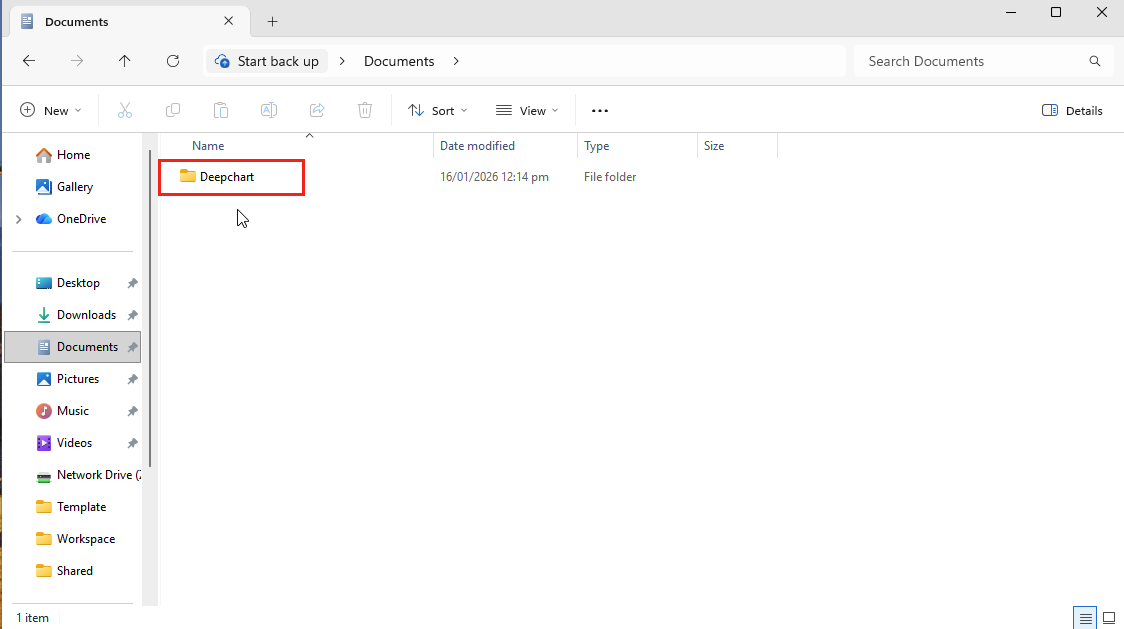
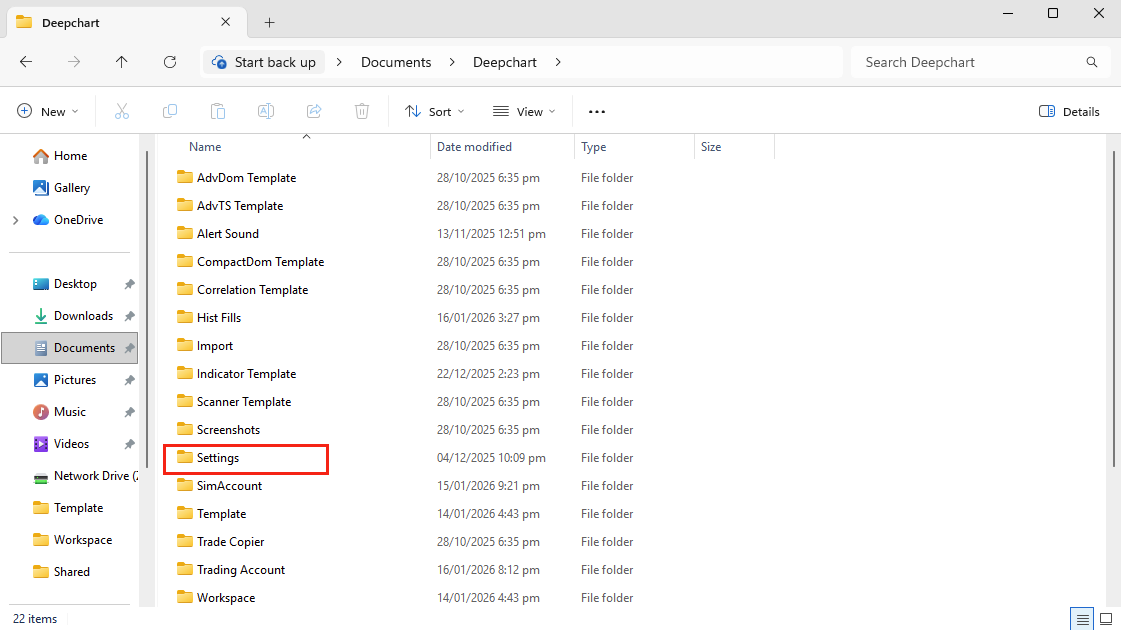
Step 4: Delete the Tool Configuration File
Locate the file named:
tool_config
Delete this file
⚠️ This file stores drawing tool settings and may become corrupted.
Step 5: Restart DeepCharts
Launch DeepCharts again
The application will automatically generate a new
tool_configfileTest the Rectangle drawing tool
✅ The drawing tool should now work correctly.
Additional Notes
This fix does not affect your data, charts, or account settings
The issue may also affect other drawing tools and resetting the configuration resolves them as well
Related Articles
Chart Zoom In and Out Not Working
Chart Zoom In and Out Not Working Overview If chart zooming is not working in DeepChart, the issue is usually related to keyboard shortcuts, mouse wheel behavior, or Windows system settings. DeepChart supports multiple ways to zoom the chart’s X-axis ...Price Chart – DeepCharts
A Price Chart is the main chart window in DeepCharts where you can view market data, apply indicators, and trade directly from the chart. This guide covers everything you need to know to get started and make the most of your chart setup. Open a New ...How to Configure Keyboard Shortcuts
1. How to Enable Keyboard Shortcuts Go to the Options section and access Settings Move to the Shortcuts column From this window you can configure various keyboard shortcuts to simplify and speed up the use of the platform. 2. Window Shortcuts ...Bar POC Indicator
Bar POC Indicator General Days to Load Defines the number of historical days loaded for the indicator. Input Data Read the different Input Data types here ( Input Data for Indicators ) Min/Max Filter By customizing these fields you can filter orders ...Unfinished Auction
Unfinished Auction The Unfinished Auction indicator highlights areas on the chart where the market has unfinished business — meaning the auction process did not complete properly. To understand this concept, it’s important to first distinguish ...